

The MyHealth Patient Portal is a secure online tool that allows you to access your health information anytime, from anywhere. With MyHealth, you can view your medical records, manage appointments, communicate with your care team, and stay informed about your health.
Getting Started
You can access the MyHealth Patient Portal by visiting: Heywood Patient Portal
The portal works on smartphones, tablets, and computers, and will automatically adjust to your screen size. If you already have a portal account, simply log in using your existing username and password.
Logging In
To log in:
- Go to the portal website
- Enter your username and password
- Click “Login”
If you forgot your password, click the “Forgot Password” link and follow the instructions to reset it.

Dashboard Overview
After logging in, you will land on your dashboard. This page provides a quick overview of your health information using “widgets.”
These widgets may include:
- Upcoming appointments
- Recent test results
- Messages
- Quick action buttons
You can use these shortcuts to quickly complete common tasks.

Navigation Menu
The navigation menu is located at the top or left side of your screen and stays visible as you move through the portal.
From this menu, you can access:
- Dashboard
- Appointments
- Calendar
- Documents
- Health Record
- Medications
- Past Visits
- Questionnaires
- Results and Reports
Click any section to navigate directly to that feature.
Viewing Your Health Information
The Health Record section allows you to view important medical information, including:
- Allergies
- Current Conditions
- Immunizations
- Health Maintencance Items
- Medical History
- Surgical History
- Family Medical History
- Option to Download Medical Record
You can also view test results and reports under the “Results & Reports” section, and additional files under “Documents.”
Appointments/Calendar
You can manage your appointments directly in the portal.
Features include:
- Viewing upcoming appointments
- Switching between list and calendar view
- Viewing appointment details
- Adding appointments to your personal calendar
You may also see questionnaires that need to be completed before your visit.
Past Visits
The “Past Visits” section allows you to review details from previous appointments.
You may see:
- Visit summaries
- Provider notes
- Related documents

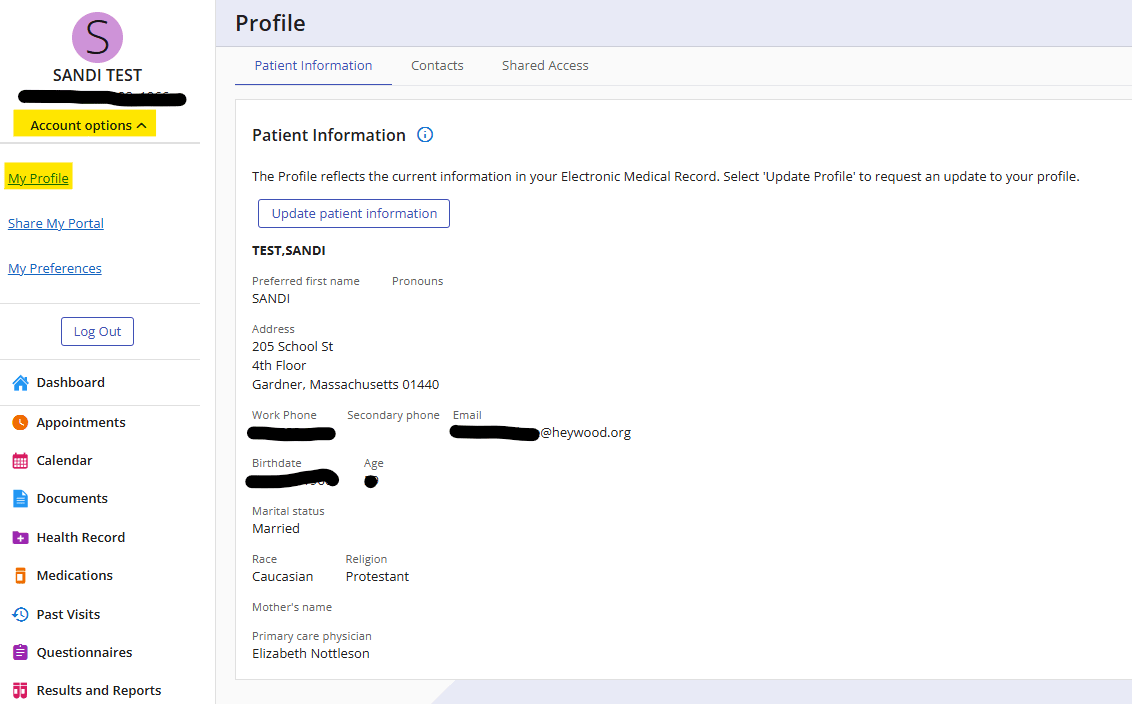
Profile & Account Settings
Under Account Options, you can manage your personal information and settings.
Here you can:
- Update contact information
- Change your password
- Manage communication preferences
Proxy Access (Sharing Access)
Proxy access allows a parent, caregiver, or authorized individual to access another patient’s portal.
If you have proxy access:
- You can switch between patients within your account
- Access is managed through Account Options
To request proxy access, please contact our Health Information Management department.
Notifications & Alerts
You may receive notifications when:
- New test results are available
- Appointments are scheduled or updated
- You receive a message
Notifications may be sent by email depending on your preferences.
Accessibility Features
The MyHealth Patient Portal is designed to be accessible to all users.
Features include:
- Screen reader compatibility
- Keyboard navigation
- Mobile-friendly design
An accessibility statement is available within the portal.
Tips for Using the Portal
- Keep your username and password secure
- Check the portal regularly for updates
- Use messaging for non-urgent questions only
- Contact your provider directly for urgent concerns